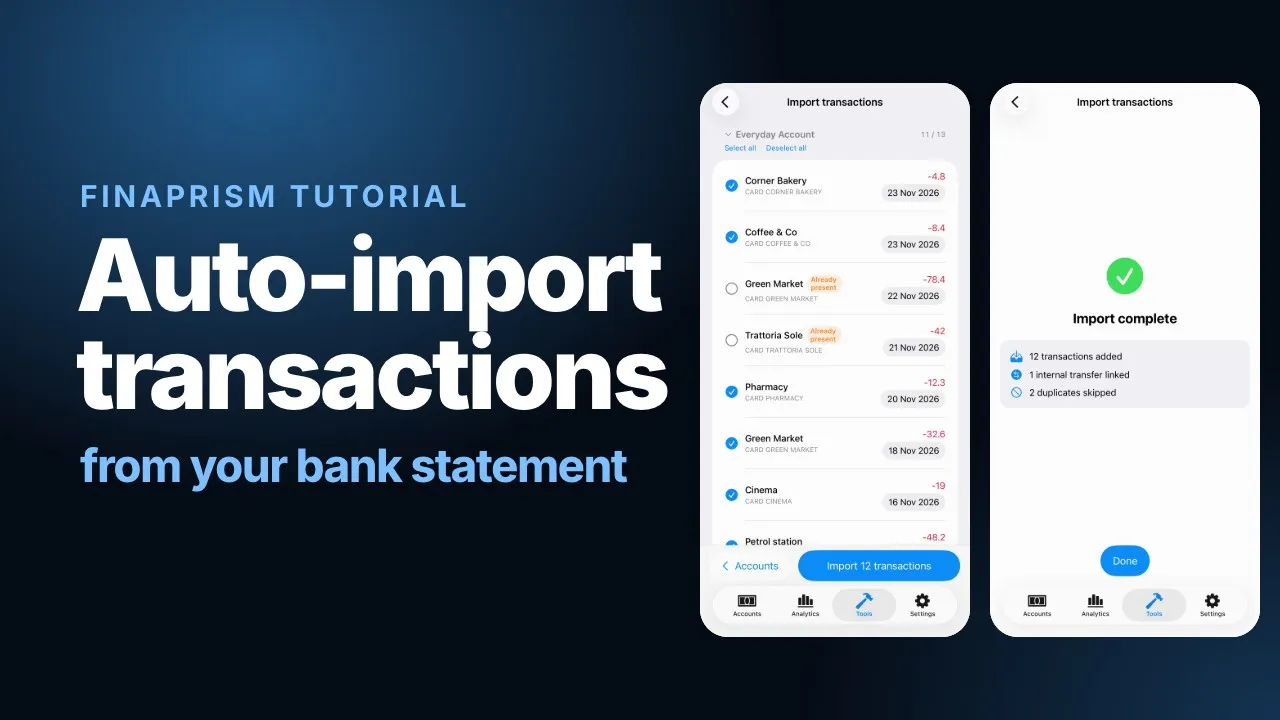
Typing in every transaction takes time. With FinaPrism, you import your bank statement instead: the AI reads it and fills in your transactions for you. There’s no need to connect your bank. This video shows the whole import, on the real app, with demo data.
The same steps are written out below, if you’d rather read than watch. The statement import is part of Premium, which you can try for free.
1. Get your statement
Download your statement from your bank’s website or app, as a PDF or a CSV file, and save it on your iPhone, in Files. A photo of a paper statement works too.
2. Choose your statement
In FinaPrism, open the Tools tab and tap Import transactions. Tap Choose documents, find your statement in Files, tap it, then tap Open.
You can add up to ten documents per import. A PDF uses one AI credit per page, and Premium includes 50 credits a month. Then tap Analyse.
3. The analysis and your accounts
The AI reads your statement on our servers. You can close the app in the meantime: FinaPrism lets you know as soon as it’s ready.
FinaPrism then finds the accounts in your statement, and recognises them by the end of their number. For each one, you choose where its transactions go: one of your accounts, or a new account created for the occasion. Tap Continue.
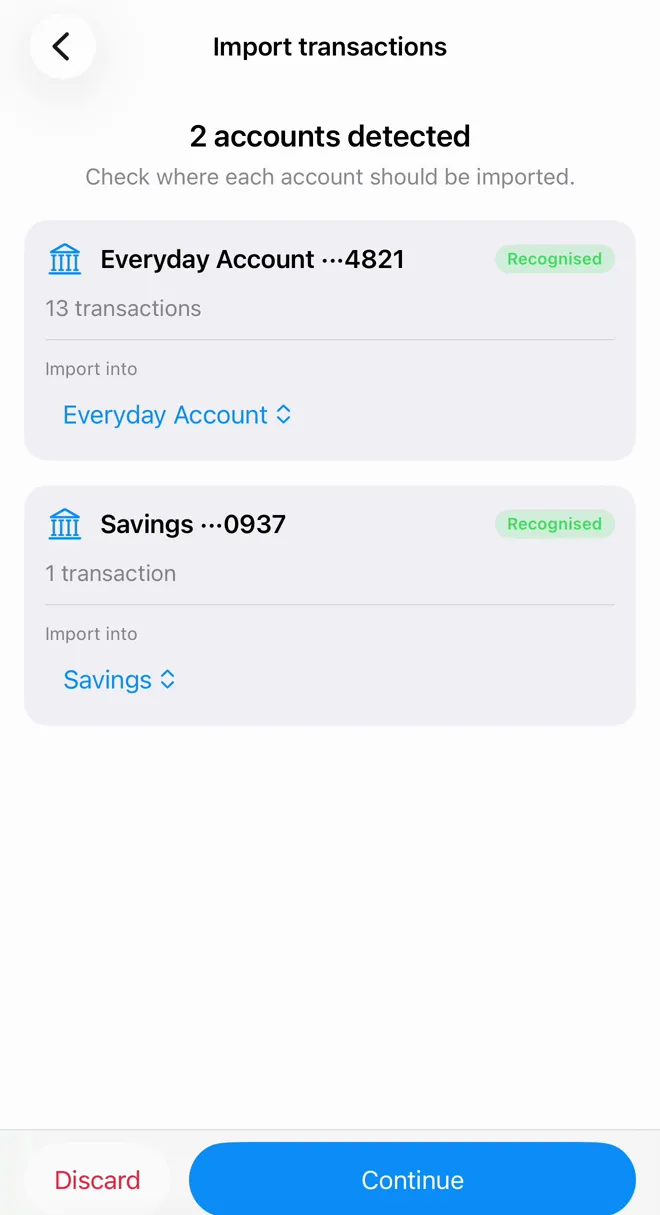 Two accounts found in the statement, recognised by the end of their number (demo data).
4. Review the transactions
Before anything is saved, you review the transactions:
- lines already in your account are marked Already present and unticked, so nothing is counted twice;
- you can untick any line, or correct its amount or its date;
- a transfer between two of your accounts is linked: it counts as neither spending nor income.
When everything looks right, tap Import.
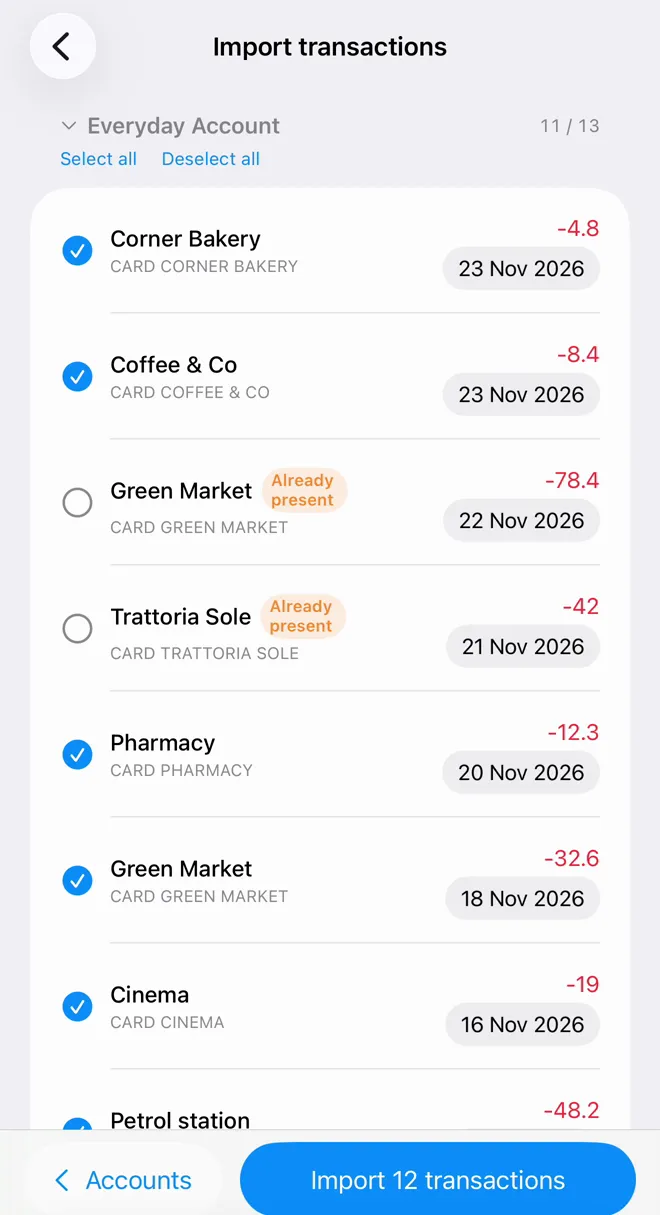 The review: two lines already present are left out (demo data).
5. Import complete
FinaPrism sums it up: the transactions added, the transfers linked, the duplicates skipped. Back on the Accounts tab, open your account: the new transactions are there, each one with its category.
6. Undo an import
Changed your mind? Open the import tool again: the history button, at the top, lists your imports. Tap one to move it to another account, or to revert it: its transactions are then deleted.
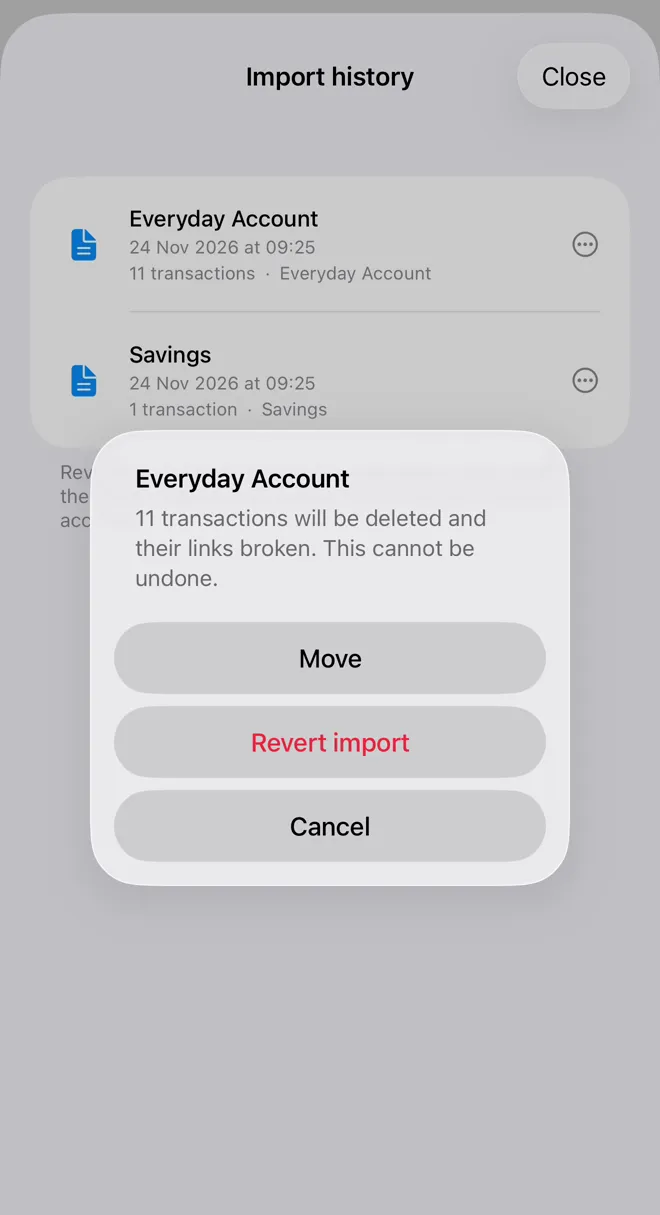 The import history: move or revert a whole import (demo data).
What’s next
Now that your transactions are in, the next step is a budget:
- the method is in How to make a monthly budget: a simple 4-step method;
- new to the app? Start with How to use FinaPrism: getting started, step by step;
- to see why an import beats linking your bank, read Track spending without linking your bank: 3 methods.