Most budget apps open with the same request: “Connect your bank.” Through open banking, a regulated provider then reads your accounts regularly, with your consent, and your transactions arrive by themselves. It’s convenient, and it’s regulated. Yet plenty of people would rather track spending without linking their bank.
Some don’t want to open their full account history to yet another service. Some find their bank isn’t supported. Some are tired of a connection that has to be renewed every so often and drops at the worst possible moment. Others simply want to choose what they track.
The good news: an expense tracker doesn’t need a bank connection at all. Here are three methods, and the routine that combines them.
Method 1: log every expense as you go
The simplest. Every time you pay, you note the amount, the date and the category. Two minutes a day is enough, and the effect is immediate: you spend differently when you write every purchase down.
To make the habit stick:
- log it when you pay, not in the evening: by then you’ve forgotten half the small amounts;
- group tiny purchases together: one “coffees this week” line beats seven lines of €2;
- don’t forget cash, which never shows on a statement: taking out €60 isn’t spending, but what you do with it is.
The catch: a missed entry doesn’t show. Once a month, compare your total with your bank statement to pick up anything that slipped through.
Method 2: import your bank statements
Your bank already gives you everything: every transaction, to the day. All you need is the statement. In most online banking apps and websites, the accounts section lets you download your transactions (often as a CSV, a file any spreadsheet can open) or your monthly statement as a PDF.
The right rhythm is once a week or once a month, always on the same day. You download the transactions since last time, sort them into categories, and you have a complete record, apart from cash.
The upside: nothing gets forgotten, since everything that goes through the account is there. The catch: sorting. A statement says “TESCO STORES 12/10”, not “this week’s food shop”. Sorting fifty lines by hand takes time, hence the appeal of a tool that does it for you.
Method 3: photograph your receipts
A photo of a receipt, taken at the till, keeps the detail your statement doesn’t have: what you bought, item by item. It’s useful for cash, and for anything you may need to prove later: a warranty, a return, an expense claim.
The trap to avoid: counting twice. A card purchase appears on the receipt and on the statement. If you enter the receipt as an expense and then import the statement, the same purchase is counted twice. The rule: the statement is the reference for the amount, and the receipt is filed with the statement’s transaction, as proof.
How to track spending without linking your bank: combine all three
| Time | What’s covered | Weak spot | |
|---|---|---|---|
| Logging as you go | 2 min a day | Everything, if nothing is forgotten | Missed entries |
| Statement import | 10 min a week | Everything that goes through the account | Sorting the descriptions |
| Receipt photos | A few seconds per purchase | The detail of each purchase | Duplicates |
In practice, the most reliable combination is a simple one:
- import your statement every week or every month: it’s the foundation, complete and accurate;
- log cash as you go, since the statement can’t see it;
- keep the receipts that matter (warranties, big purchases, expenses to claim back) attached to their transaction;
- check in for ten minutes a week: that’s where tracking turns into a budget. How to set your spending envelopes is covered in How to make a monthly budget: a simple 4-step method.
And with FinaPrism
FinaPrism made its choice once and for all: it’s a budget app that never connects to your bank. Your online banking login stays with your bank, and you decide what goes into the app.
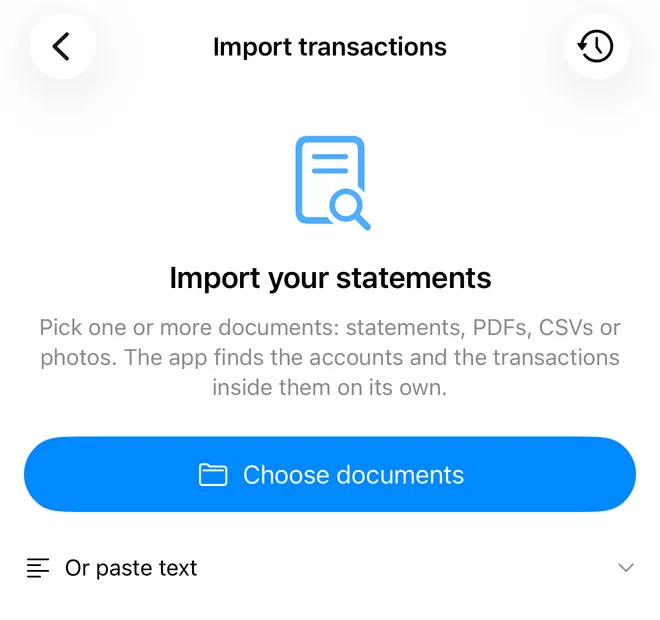 Statement import in FinaPrism.
- Manual entry of your transactions, accounts and budgets is free.
- Import (Premium, with a 7-day free trial) reads your PDF or CSV statements, a photo, a screenshot, a text or JSON file, or pasted text. It finds the accounts and transactions, sorts them into categories, and you check the result before it’s saved. Transactions already in the app are spotted, so nothing is counted twice.
- Receipts (also Premium) attach straight to their transaction: a photo, a scan or a PDF.
No bank connection, no ads, no trackers.